Decades worth of next year being “Year of Linux on the Desktop” have turned it into a meme for something that never quite materialises. Now however, a significant change is happening, as factors align to make switching from Windows to Linux easier and more beneficial.
To test how ready Linux is for mainstream desktop use, I converted our multi-user home PC to Linux.
Read on to find out how well this went.
Why now?
Microsoft has positioned Windows to require artificial intelligence (AI) hardware for their Copilot+ PCs. If you’re not invested in the AI PC narrative and are unwilling to spend your money on new hardware then you will be looking for alternatives.
You may have lost trust in Microsoft, as clumsy features such as Recall and desktop advertising make you feel less like a customer, and more like a product.
Furthermore, Linux has evolved, offering user-friendly desktop options that simplify the transition without requiring obscure commands from forums to get everything working, and software vendors have started releasing Linux versions of their apps.
This Linux is Mint
Linux is a world of choices, and at first this can be a bit overwhelming. From the many distributions available, I chose Linux Mint. This is designed to be easy to install and has Windows desktop people in mind – the interface has a familiar look and feel, even down to (most) windows shortcut key mappings.

Tux the Linux Mascot enjoys Mint1
The Mint interface design is nice and clean:

The bottom-left corner of my Linux Mint desktop, with the start menu where it should be
Mint comes with LibreOffice, providing a free alternative to Microsoft Word, Excel, and PowerPoint. This allows me to cancel my family Office365 subscription, which is a bonus.
It also comes with Thunderbird for email (as an Outlook alternative), Firefox web browser, and various graphics tools.
The Linux Mint Software Manager simplifies finding and installing software:
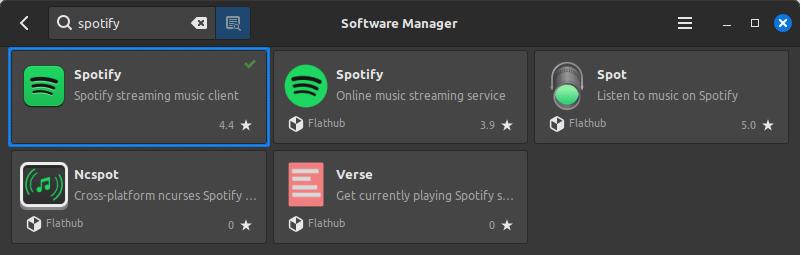
Example of searching for “spotify” in Software Manager
Migration Considerations
Things that worked for me when migrating from Windows to Linux Mint, over and above the official guide (which you should read).
Before you migrate
- Make a list of all the applications you and others use on Windows and check if there is a Linux equivalent, whether it’s a native app (such as Spotify, which has a Linux version) or an open-source alternative (like LibreOffice Writer for Microsoft Word). There are also ways to run native Windows apps in Linux, such as using Wine, but I have not tested this.
- Back up your data and settings (including browser bookmarks, etc.) to an external drive or the cloud.
- Ensure you also back up data and settings for any other users.
- Think about how you want to migrate. I chose a low risk option where I purchased a new SSD boot drive so I could rollback by switching drives. Dual boot is another option that lets you try Linux Mint without new hardware.
- Watch videos of people installing Mint to get ideas of what to expect.
Migrating
- In Windows, disable fast start-up and perform a full shutdown to allow read/write access to drives in Linux. I didn’t know about this and had to boot back into Windows as my data drive was read-only in Linux. A simple fix, but annoying to have to go back to Windows to do it.
- Choose to install the multimedia codecs during the install.
- After the install completes, do the recommended actions to set up system snapshots and the firewall.
- Check your printer works (if you have one). Ours auto-detected and worked fine.
- Set up accounts for any other users of the system. First impressions count, so get them set up and walk them through their first logon and show them around.
Getting used to Linux
Most things worked out-of-the-box with Linux Mint. There were a few things I changed, (and none of them required the command line):
- WindowsKey+L doesn’t lock the desktop. This can be fixed by changing the key mapping: Navigate to Start > Keyboard. Then click Shortcuts and single click System then Lock screen. In Mint the Windows key is called Super, so we add Super+L keyboard binding with “Add custom shortcut”:

WindowsKey (aka Super) + L shortcut added to lock the screen
- The LibreOffice Writer Ribbon option makes menus look like Word, but beware as Tools > Customize doesn’t appear when in this mode. Use the Menubar toggle (top-left – a down blue arrow in a white box) to change between menu views.
Wrapping it up
I found Linux Mint to be easy to install and user-friendly, making it a good free alternative to Windows. Your-mileage-may-vary (YMMV) depending on what you use Windows for. The non-technical person in my family is using it fine for web browsing and office productivity tasks, so it should meet most general requirements.
It does require some planning and learning to migrate, but the journey is worthwhile for the freedom to use your computer exactly how you want to.
Are we close to “Year of Linux on the Desktop”? I don’t know for sure, but I do know that Linux is a valid alternative to Windows for desktop use, and I salute all the volunteers who made this possible.
1Image generated on Google Image FX with prompt “A shiny cartoon linux mascot penguin with a yellow bill sitting in a field of mint looking content”
 Bits 'n Bytes
Good article. Would’ve been a GREAT article if Mr Hayes had mentioned which version of Linux Mint he installed. Probably Linux Mint Cinnamon.
LikeLiked by 1 person
Thanks for the feedback. We are running Linux Mint 21.3 Cinnamon.
LikeLiked by 1 person
Welcome to the Dark Side.
How’s the first few months been?
LikeLike
Linux Mint is going well thanks. When time permits I’ll do a follow-up blog post about my experiences with it and what I’ve learnt.
LikeLiked by 1 person